
Publishing Powershell Azure SQL VM Toolkit
A PowerShell toolkit for preparing Azure SQL Server VMS
Kay Sauter has been working with SQL Server since 2013. His expertise covers SQL Server, Azure, Data Visualization, and Power BI. He is a Microsoft Data Platform MVP. Kay blogs on kayondata.com and is actively involved in various community projects like Data TGIF, databash.live, data-conference.ch, and Data Platform Data Platform DEI Virtual Group. He is based in Zurich, Switzerland and in his free time, together with his wife, he loves to travel to discover new cultures and perspectives.
In 2021, I wrote a PowerShell script to automate most of the steps for deploying a SQL Server VM on Azure, but not everything. Also back then, the whole deployment process with the script took almost one hour to deploy, including database restores and installing chololatey and some tools. Today, I present a new script that does much more, and is faster, easier to configure thanks to YAML. There is only one manual step left: You still have to log into the VM and start a dbatools script to restore your databases. This is not for lack of my willingess but a limitation of the Invoke-AzVMRunCommand method, which means that you'll be the SYSTEM user which is not desirable for database restores.
Why YAML you might wonder? A YAML file is very easy to use, and many infrastructure-as-code tools (like Ansible, Terraform, etc.) use YAML for configuration, so people that are usually working on infrastructure will be pleased to see something like this if a DBA gives them a such YAML file. Additionally, it gives you the possibility to touch only the configuration, but run the same code again for a different deployment.
And for you, as a SQL developer or DBA, you will gain time, as you won't have to click through Azure pages to configure everything, but just quickly edit the YAML file and run the script. Because most of the settings will be similar for you, you don't have to touch every configuration you've made before, either.
You can change the VM size, region, SQL Server version, and more by simply editing the YAML file without touching the script itself. The best part: the entire deployment now takes about 30 minutes from start to finish, including database restores (sample databases by Microsoft; your databases may take longer if they are bigger) and installing tools.
In this post, I'll walk through a PowerShell script that deploys a fully configured SQL Server 2022 VM on Azure. It sets up Azure Bastion for secure access, Key Vault for secrets management, Azure Files for persistent storage, and installs development tools automatically. The entire deployment is driven by a single YAML configuration file.
The Solution: Config-Driven Deployment
The solution is split into two files:
config.yaml: a declarative configuration file that defines what to deploy
vm_creation_with_bastion.ps1: the deployment script that makes it happen
The Configuration File
Everything that might change between deployments lives in config.yaml:
resourceGroup:
  name: "YourResourceGroupName"
  location: "Switzerland North"
  tags:
    Purpose: "Demo"

vm:
  size: "Standard_DS13_V2"
  image:
    publisherName: "MicrosoftSQLServer"
    offer: "sql2022-ws2022"
    skus: "sqldev-gen2"
    version: "latest"

storage:
  resourceGroup: "yourstorageRG"
  accountName: "yourstorageaccount"
  fileShareName: "yoursqlbackupsharename"
  driveLetter: "Z"
Want a different VM size? Change one line. Different region? One line. Different SQL Server version? One line. No script modifications needed.
Architecture Overview
The deployment creates resources across two resource groups by design:
Azure Subscription
|
+-- Resource Group: YourResourceGroupName (disposable)
|   +-- Azure Bastion
|   +-- SQL Server VM (Managed Identity)
|
+-- Resource Group: yourstorageRG (persistent)
    +-- Key Vault (secrets: vm-admin-password, storage-account-key)
    +-- Storage Account
        +-- File Share (mounted as Z: on VM)
            +-- restore-databases.ps1 (uploaded by script)
Why two resource groups? The VM resource group is disposable. You can tear it down and rebuild without losing your Key Vault, storage account, or database backups. The persistent resource group survives VM rebuilds, which matters a lot when you frequently spin up and destroy environments during development.
Choosing an Azure Bastion SKU
Azure Bastion comes in different SKU tiers. Check https://learn.microsoft.com/en-us/azure/bastion/bastion-sku-comparison for more information.
Key Design Decisions
1. Idempotent Resource Creation
Every resource is checked before creation. Run the script twice and it won't fail or create duplicates. This is crucial for development environments where you might iterate on the config and re-run the script multiple times.
2. Key Vault Soft-Delete Handling
Azure Key Vault has a soft-delete feature that retains deleted vaults for 90 days. If you delete a Key Vault and try to create one with the same name, you will get an error: "The vault name is already in use."
The script handles this by automatically incrementing the name.
At the end of the deployment, the script notifies you of the name change so you can update your config for future runs.
3. Cryptographically Secure Password Storage
The password is stored in Key Vault immediately and never written to disk. Instead of relying on Get-Random (which uses a PRNG), the script generates VM admin passwords using RNGCryptoServiceProvider and guarantees complexity requirements
4. Managed Identity for Secrets Access
The VM uses a system-assigned managed identity to retrieve secrets from Key Vault. No credentials are hardcoded or stored on the VM. The file share mount script, which runs on the VM, fetches the storage account key at runtime.
Even if someone gains access to the VM, they can not extract long-lived credentials. The managed identity token is short-lived and scoped.
5. Persistent File Share Mount
The Azure Files share is mounted as a drive letter (Z:) using New-SmbGlobalMapping, which makes it available to all users and services on the VM. A scheduled task re-mounts it on every reboot.
6. Automated Software Installation
The script installs development tools on the VM via Invoke-AzVMRunCommand, defined entirely in the YAML config:
softwareInstalls:
  installScript: |
    choco install vscode git powershell-core tabular-editor -y
    Install-Module -Name dbatools -Force
  logonScript: |
    code --install-extension ms-mssql.mssql
Some tools (like VS Code extensions) need a user session, so the script registers a one-time logon task that runs at first login and then cleans itself up.
7. Database Restore Script
A restore-databases.ps1 script is automatically uploaded to the file share. After logging into the VM, you can restore all .bak files from the share with a single command:
Z:\restore-databases.ps1
It uses dbatools to iterate over all backup files and restore them to the local SQL Server instance.
Running the Deployment
Prerequisites:
PowerShell 7+ with the
Azmodule installedAn active Azure session (
Connect-AzAccount)
Then simply:
.\vm_creation_with_bastion.ps1
Or with a custom config:
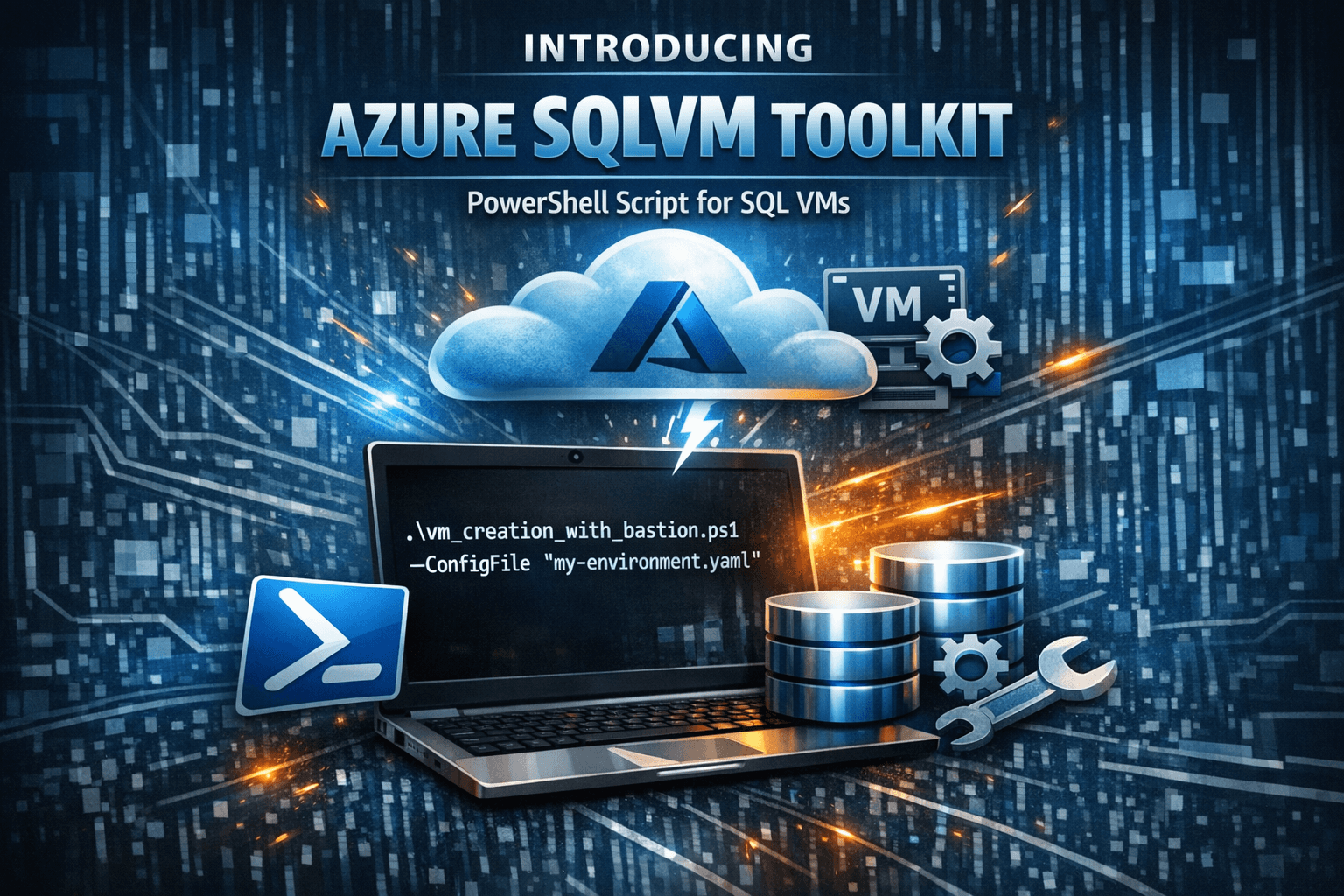
.\vm_creation_with_bastion.ps1 -ConfigFile "my-environment.yaml"
At the end, the script prints the VM credentials and total deployment time:
Deployment completed in 00:18:42.

VM Login Credentials:
  Username: youradminusername
  Password: <generated-password>
I am going to publish a YAML writing helper for SQLVMs so that the picking of a SQLVM image is easier and faster, and it'll write the YAML file for you. Stay tuned for that!
The full source code is available on GitHub.